
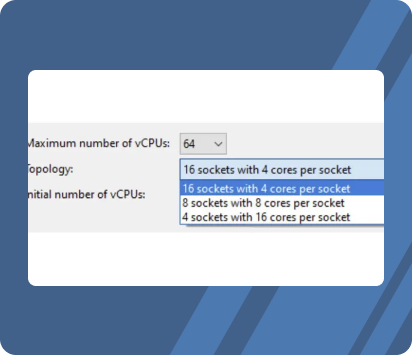
64 vCPU support
XenServer 8 now supports up to 64 vCPUs. There are however some considerations to bear in mind.
OS capabilities and vendor limits
-
OS
- Windows 10 (64-bit)
- Windows 11
- Windows Server 2016 (64-bit)
Windows Server 2019 (64-bit)
Windows Server 2022 (64-bit) - Red Hat Enterprise Linux 7
Oracle Linux 7
CentOS 7
Scientific Linux 7 - Red Hat Enterprise Linux 8
Oracle Linux 8
Rocky Linux 8 - Debian Bullseye 11
Ubuntu Jammy Jellyfish 22.04
Ubuntu Focal Fossa 20.04
SUSE Linux Enterprise Desktop/Server 15 (64-bit)
SUSE Linux Enterprise Server 12 SP5 (64-bit) - Debian Buster 10
Gooroom Platform 2.0 - Debian Buster 10
Debian Bullseye 11
-
Architecture
- x86-32
- x86-32
- x86-32
- x86-32
- x86-32
- x86-32
- x86-32
- x86-32
-
CPU limit (maximum)
- Limit of 4 sockets and 1280 logical cores
- Limit of 4 sockets and 1280 logical cores
- Limit of 64 sockets and unlimited cores
- Tested Limit: 768
Theoretical Limit: 5120 - Tested Limit: 768
Theoretical Limit: 8192 - Theoretical Limit: 8192
- Theoretical Limit: 512
- Theoretical Limit: 32
-
CPU limit (minimum)
- >=2 logical cores
- >=2 logical cores
- >=2 logical cores
-
Comments
- Windows license has a 4 socket limit for Enterprise SKUs. Home Edition has a 1 socket limit and Pro Edition has a 2 socket limit.
- Windows license has a 4 socket limit for Enterprise SKUs. Home Edition has a 1 socket limit and Pro Edition has a 2 socket limit.
- Windows license has a 4 socket limit for Enterprise SKUs. Home Edition has a 1 socket limit and Pro Edition has a 2 socket limit.
- 32 bit Debian OS has a limit of 32 CPUs.
Examples of exceeding the supported CPU limits
If you exceed or fail to meet the supported CPU limits on a Linux or Windows guest OS, you may encounter the following issues.
Example 1: Exceeding the maximum vCPU limit on a Linux guest OS
For an x86-32 Debian 10 OS, if you set the Maximum number of vCPUs field to 40, the Topology field is set to 10 sockets with 4 cores per socket. This exceeds the 32 CPU limit and although the 32 vCPUs are listed, any excess CPUs are not displayed. Similarly, the number of cores per socket is displayed in the same way, however, the number of sockets is limited to only the supported numbers to ensure that the total vCPUs do not exceed 32.
# lscpu
Architecture: i686
CPU op-mode(s): 32-bit, 64-bit
Byte Order: Little Endian
Address sizes: 48 bits physical, 48 bits virtual
CPU(s): 32
On-line CPU(s) list: 0-31
Thread(s) per core: 1
Core(s) per socket: 4
Socket(s): 8
Example 2: Exceeding the socket limit on a Windows guest OS
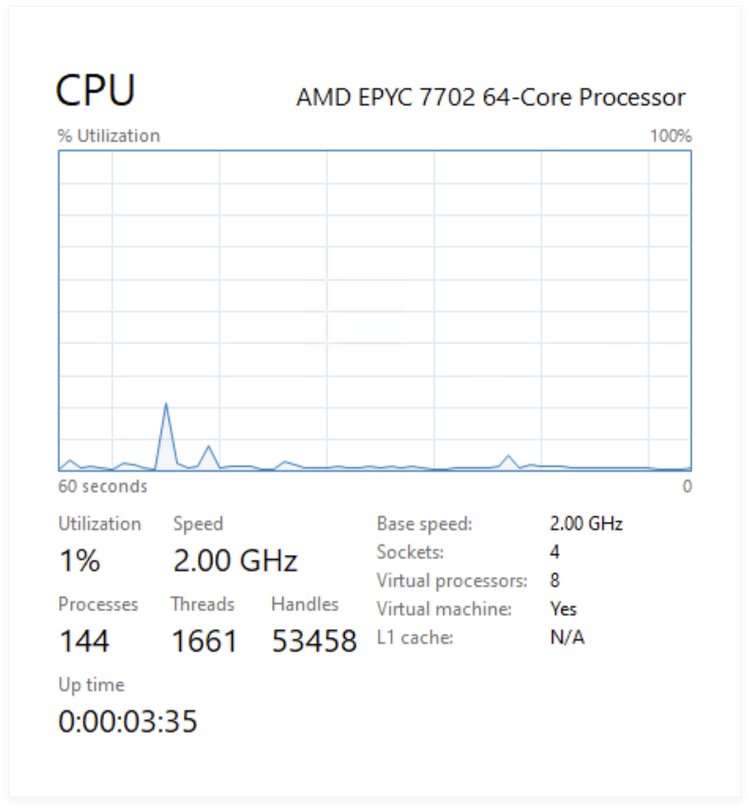
For an x86-64 Windows 10 OS, if you set the Maximum number of vCPUs field to 10, the Topology field is set to 5 sockets with 2 cores per socket. This exceeds the Windows license limit of 4 sockets for Enterprise SKUs. In your Windows guest, you will see only 4 sockets. Hence the total vCPUs number shown is 8.
Example 3: Failing to meet the minimum vCPU requirement on a Windows guest OS
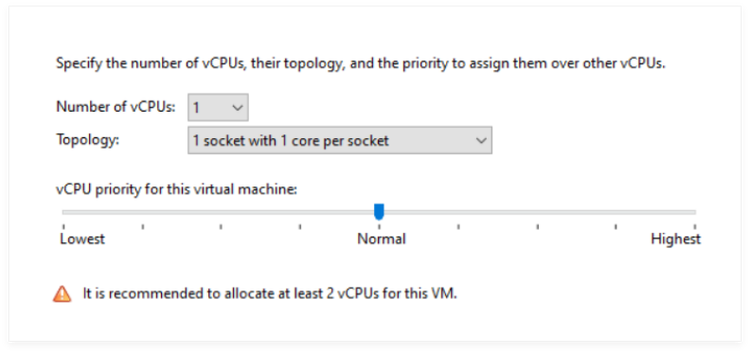
For an x86-64 Windows 10 OS, if you set the Maximum number of vCPUs field to 1, the Topology field is set to 1 socket with 1 core per socket. This does not meet the minimum vCPU requirement of 2 CPUs and so XenCenter displays a warning to prompt you to select at least 2 vCPUs for your Windows guest.
How XenCenter calculates your vCPU topology
- In the Maximum number of vCPUs field in XenCenter, you select an integer between 1 and 64.
- XenCenter breaks this number down into two integers: the number of sockets and the number of cores per socket. These numbers multiply together to make up the Maximum number of vCPUs.
- XenCenter calculates and displays the different topology configurations available to you in the Topology field.
Some topology configurations will not be available due to the following limits:
- The number of sockets is limited to 16.
- The number of cores per socket cannot exceed the physical cores per socket limit.
Example 1: Your host has 32 physical CPUs
The following command displays the host’s CPU information:
# xe host-cpu-info
cpu_count: 32
socket_count: 2
vendor: GenuineIntel
We can see that the host has 32 logical CPU cores and 2 sockets, therefore the number of cores per socket is limited to 16.
The Maximum number of vCPUs that you can select is from 1 to 64.
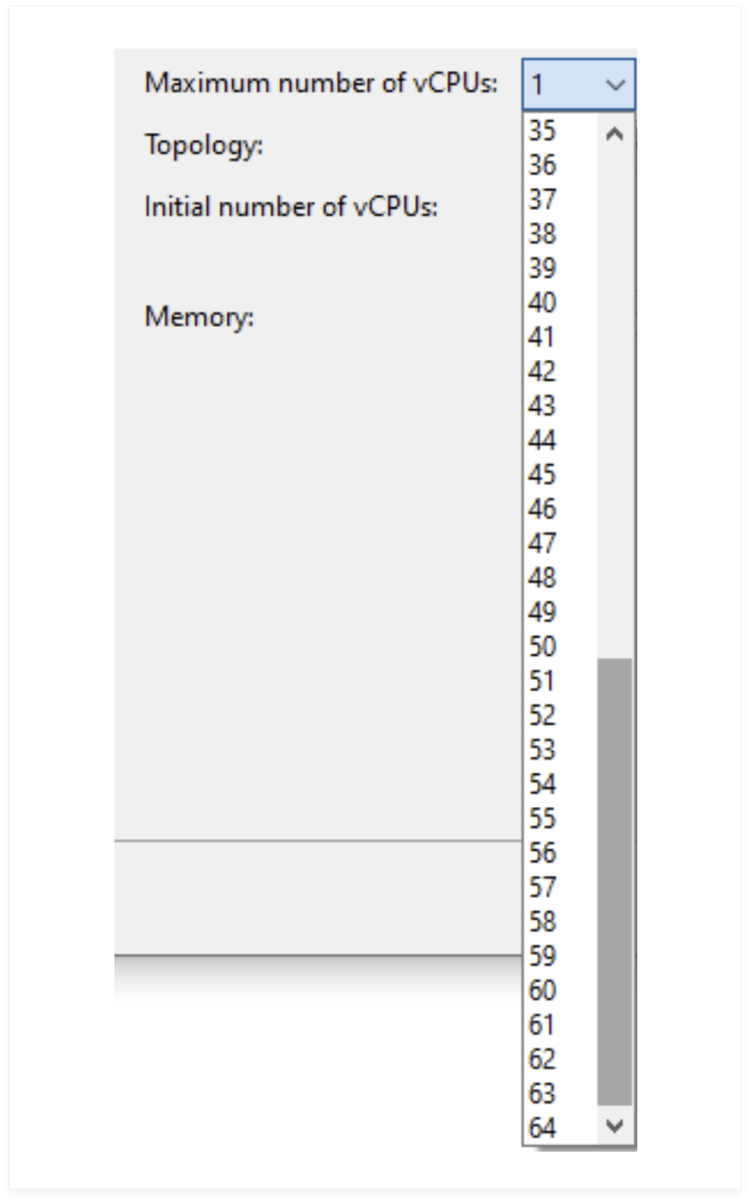
If you set the Maximum number of vCPUs field to 64, XenCenter displays a warning saying that the host only has 32 physical CPUs, but that you can still choose 64 vCPUs for the VM.
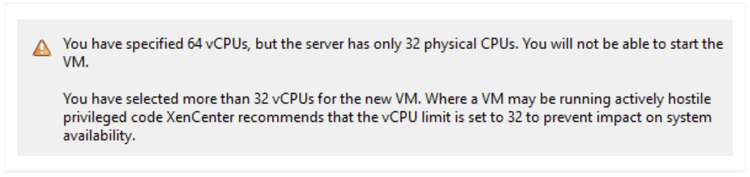
The Topology field in XenCenter displays the different topology configurations that you can select:
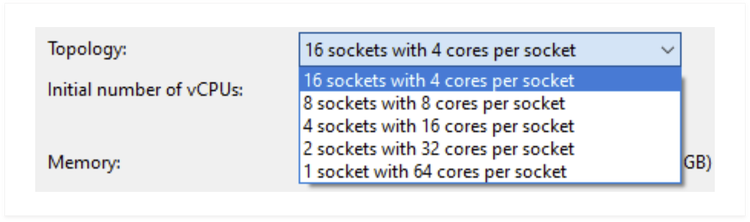
This table shows the different topology configurations calculated by XenCenter, and why some topology configurations are not available for you to select.
Example 2: Your host has >= 64 physical CPUs
The following command displays the host’s CPU information:
# xe host-cpu-info
cpu_count: 256
socket_count: 2
vendor: AuthenticAMD
We can see that the host has 256 logical CPU cores and 2 sockets, therefore the number of cores per socket is limited to 128.
The Maximum number of vCPUs that you can select is from 1 to 64.
If you set the Maximum number of vCPUs field to 64, XenCenter displays a security warning saying that you have selected more than 32 vCPUs, but that you can still choose 64 vCPUs for the VM.
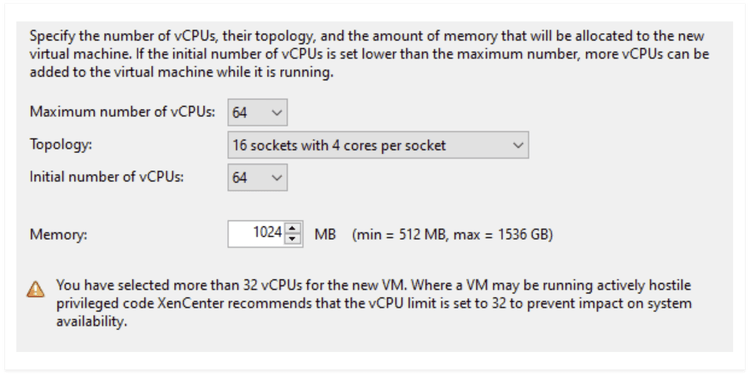
The Topology field in XenCenter displays the different topology configurations that you can select:
This table shows the different topology configurations calculated by XenCenter, and why some topology configurations are not available for you to select.